Family Sharing
Share a pet with your partner, a parent or the sitter. Everyone sees the same records.
Share a pet and the people you invite see its records on their own iPhone: vaccinations, treatments, procedures, medications, vet visits, weights and documents. It runs on iCloud, so nobody needs an account with us.
Steps
Share a pet. Open the pet, tap the Share button in the top-right corner, and choose Share with family. You can also start from Settings → Share with family → Choose a pet to share.
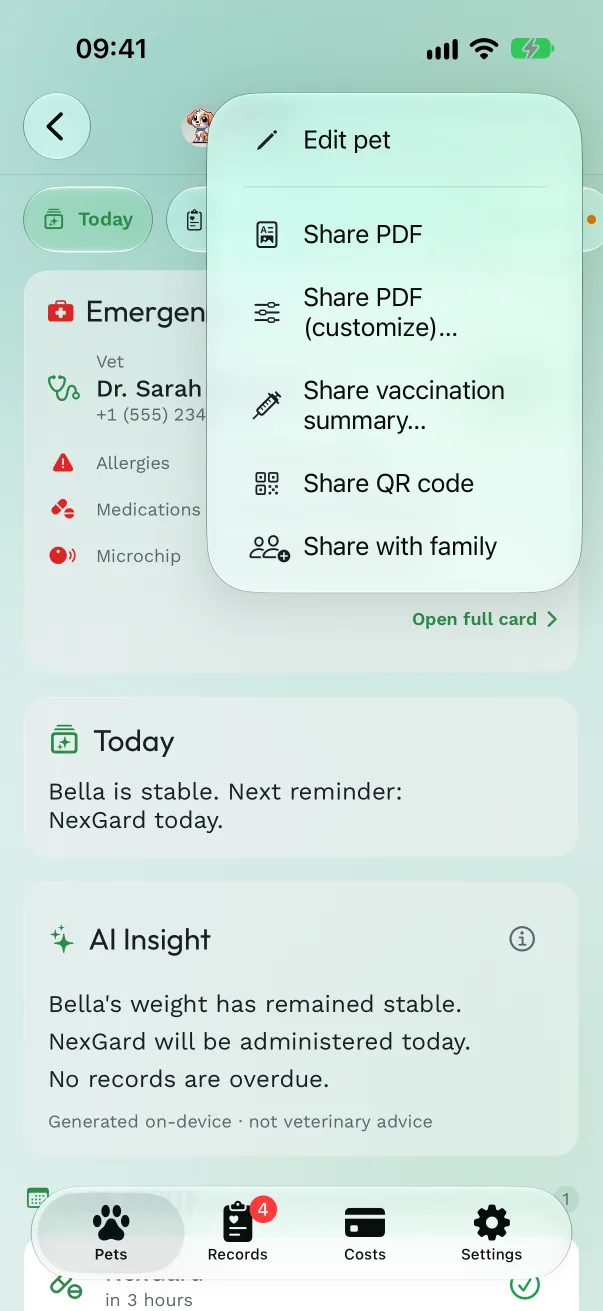
Send the invitation. The share sheet opens with a ready-made invitation: what Pet Health+ is, that joining is free, a link to get the app, and the invitation link. Send it by Messages, Mail or any app, to as many people as you like.
They accept. The other person gets the app from the first link if they don't have it yet, then taps the invitation link on their iPhone or iPad. They see "Shared pet added", and the pet appears on their Pets tab under Shared with You, marked "From" your name. Until someone accepts, the pet's Today tab shows Invite pending with Resend and Copy link. If nobody has joined after 3 days, it asks once: "Still waiting for someone to join?"
See who has it. Settings → Manage Shared Pets lists Shared by Me and Shared with Me. Each person shows Pending until they accept, then Accepted. Tap your own pet's row to add or remove people.
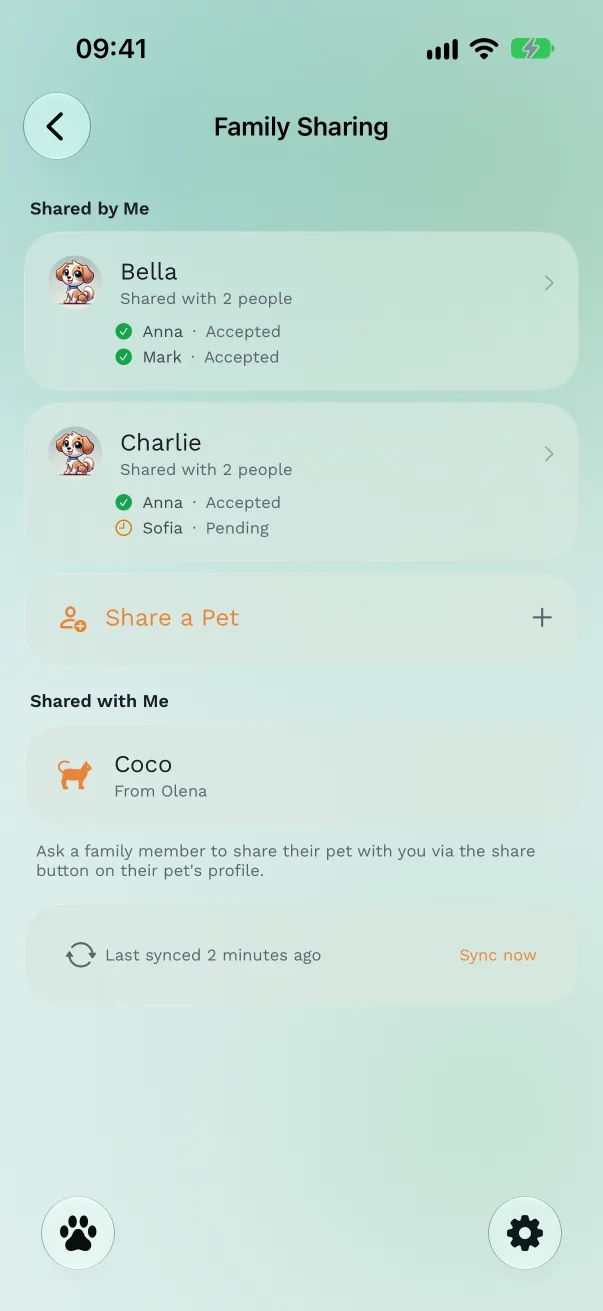
Stop sharing. In Manage Shared Pets, touch and hold the pet and choose Stop Sharing. Someone you shared with can choose Remove Shared Pet to take it off their phone; your copy is untouched.
What the other person sees
- The pet's records, its Today tab and Emergency card, and the documents you attach, kept in sync as you add them. What you delete disappears for them too.
- Shared pets in the Sunday weekly summary, on their widgets, in their Live Activities and on their Apple Watch.
- A View only banner on the pet: for now, only the pet's owner adds and changes its records.
Free or Pro
Sharing a pet is part of Pro. The people you invite don't need Pro to accept and see the pet. The Manage Shared Pets screen in Settings is part of Pro.
Good to know
- Everyone needs to be signed in to iCloud. Without it the app shows "iCloud is required for Family Sharing" with a button to open Settings.
- Sharing uses the sharer's iCloud storage. If it's full, the app says "iCloud storage full — family sharing is paused" until there's room.
- Changes arrive on their own. With Pro, Sync now at the bottom of the Family Sharing screen fetches them right away.
- Sharing a pet again after reinstalling or moving to a new iPhone reuses the existing share; nobody needs a new invitation.
If something's off
- "Failed to accept share" — the person isn't signed in to iCloud, or the link was opened before the app finished setting up. Open the link again after the first screen.
- The pet doesn't appear after accepting — close and reopen Pet Health+ on their phone and give it a minute. With Pro, Settings → Manage Shared Pets → Sync now fetches it at once.
Get Pet Health+
Free to start, no account. For iPhone, iPad and Apple Watch.